The Importance of School Photography

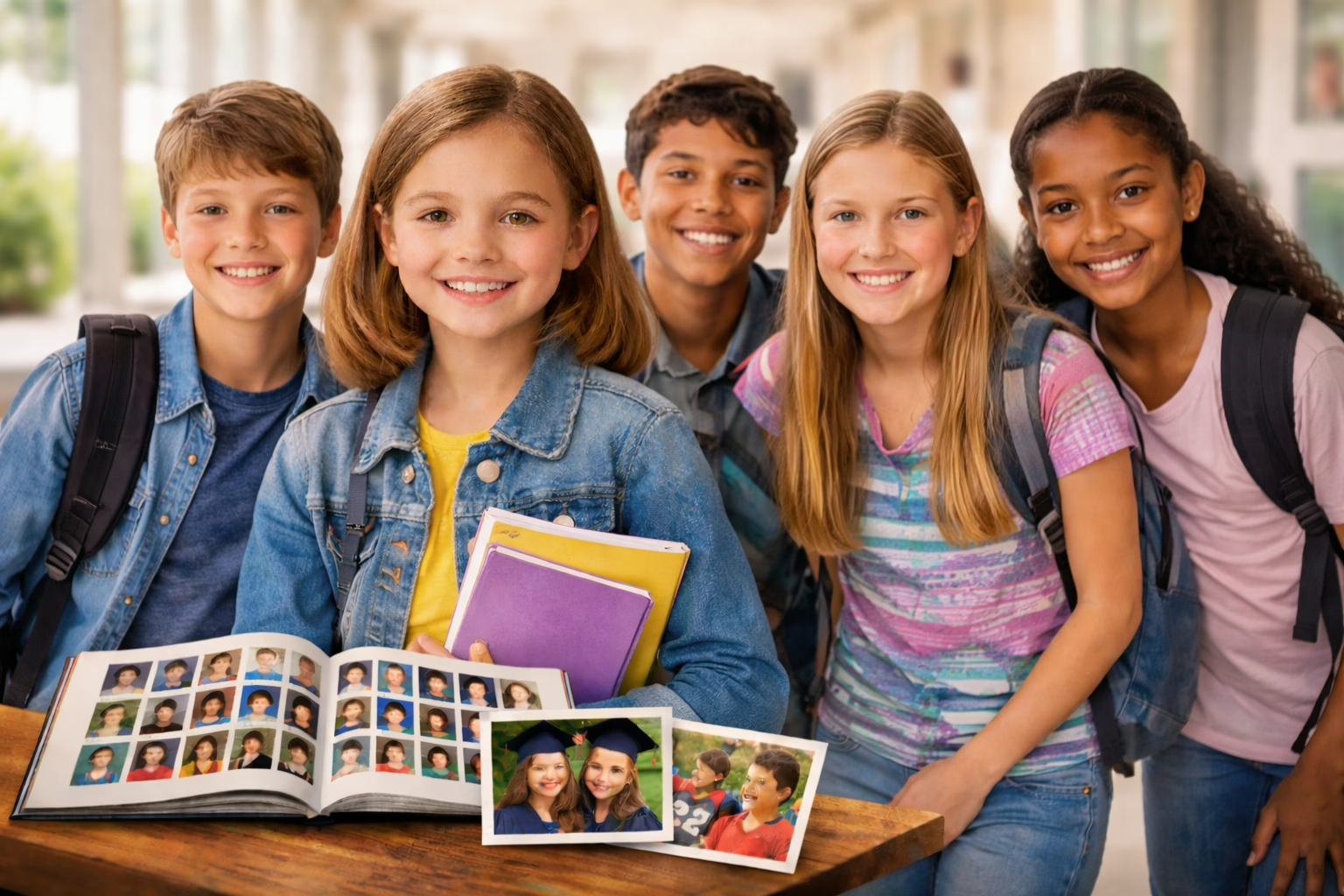
Kids at school with a yearbook

Capturing Moments That Last a Lifetime

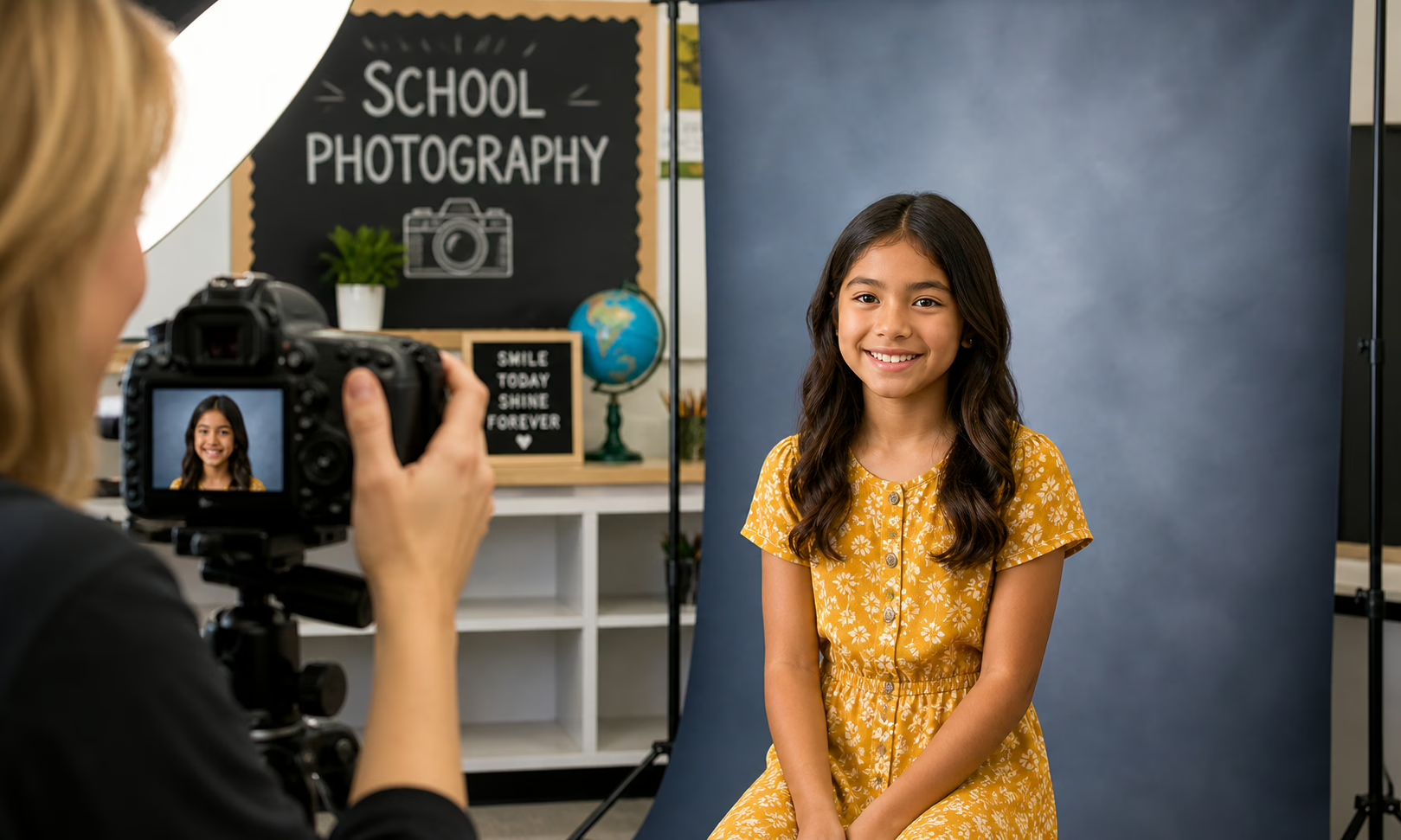
School photography is more than just a yearly tradition—it’s a powerful way to preserve memories, celebrate growth, and create lasting connections between students, families, and communities. From individual portraits to group photos and candid moments, school photography plays a vital role in documenting the journey of childhood and education.

Why School Photography Matters

Every school year represents a new chapter in a student’s life. School photos capture these milestones, allowing families to look back and see how much their children have grown over time. For many parents, these images become cherished keepsakes that are displayed in homes, shared with relatives, and saved for generations.

Beyond families, schools also benefit from photography. Yearbooks, newsletters, and promotional materials rely heavily on high-quality images to tell the story of the school community. These visuals help showcase achievements, diversity, and the unique culture of the institution.

More Than Just a Portrait

While traditional headshots are a staple of school photography, modern approaches go far beyond the standard backdrop. Today’s school photographers often incorporate:

  • Candid classroom moments that show students actively learning
  • Event coverage such as sports, performances, and ceremonies
  • Creative backgrounds and themes that reflect personality and school spirit
  • Group photos that highlight friendships and teamwork

These elements help create a more complete and authentic representation of the student experience.

The Role of Technology

Advancements in technology have transformed school photography in recent years. Digital cameras, online galleries, and instant proofing systems have made the process faster and more convenient for both schools and parents. Families can now view, select, and purchase photos online, often within days of the shoot.

Additionally, modern editing tools allow photographers to enhance images while maintaining a natural look. Features like color correction, background adjustments, and retouching ensure that every student looks their best.

Tips for a Successful School Photo Day

To get the most out of school photography, preparation is key. Here are a few tips for students and parents:

  • Choose simple, comfortable outfits that reflect the student’s personality
  • Avoid busy patterns or logos that may distract from the face
  • Get a good night’s sleep to look refreshed and alert
  • Practice natural smiles to feel more confident in front of the camera

Schools can also help by organizing schedules efficiently and creating a relaxed environment for students during photo sessions.

Supporting Local Communities

Many school photography programs partner with local businesses and organizations, helping to support the community. By choosing experienced and reputable photographers, schools can ensure high-quality results while contributing to local economic growth.

Looking Ahead

As schools continue to evolve, so does school photography. With new trends like digital yearbooks, personalized photo products, and even video integration, the future of school photography is more dynamic than ever.

At its core, however, the mission remains the same: to capture meaningful moments that tell the story of a student’s journey. These images are not just photographs—they are memories, milestones, and pieces of history that will be treasured for years to come.
Holiday Backgrounds Are Here – Make This Season Your Best-Selling One

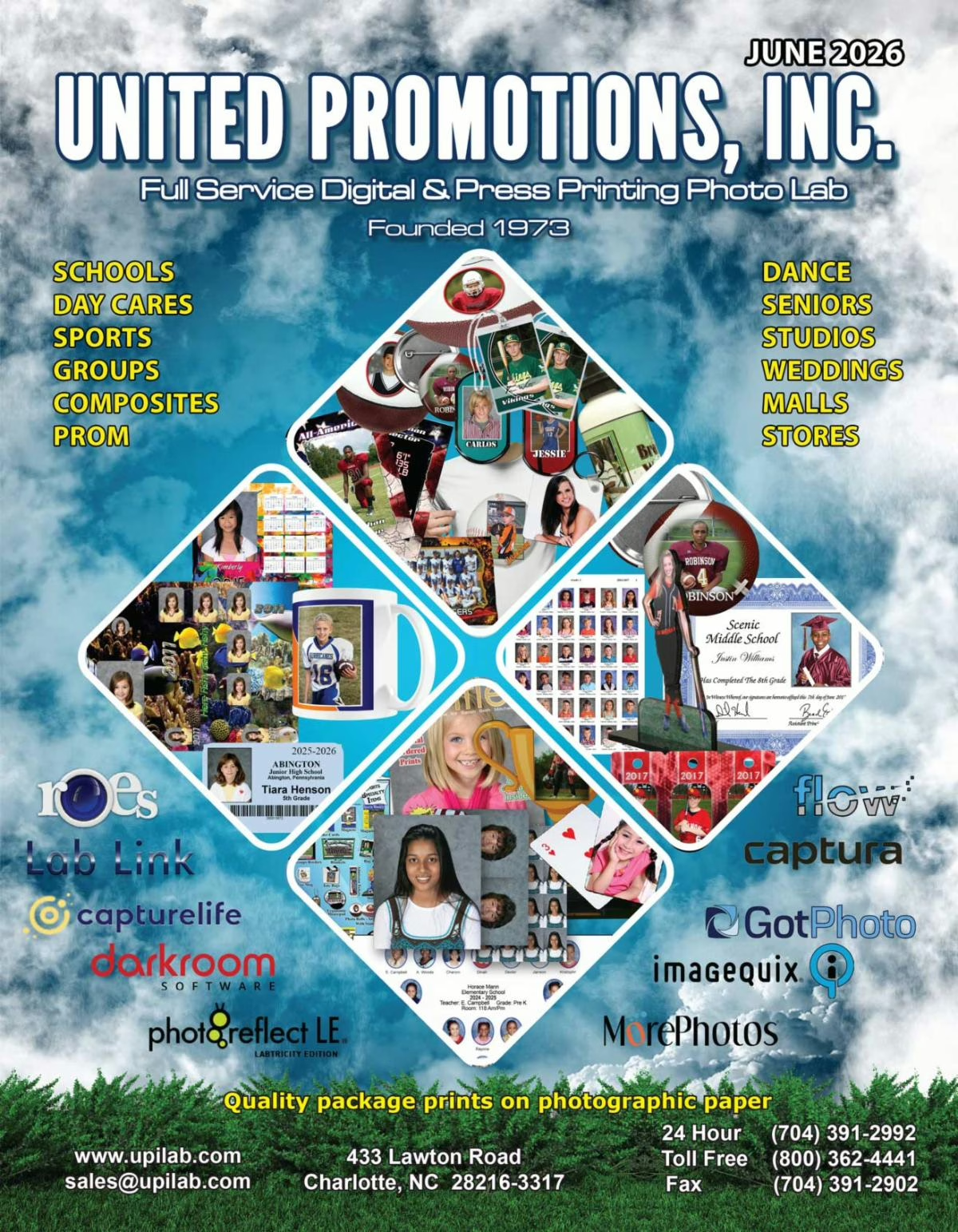
Fall is the perfect time for parents to start thinking ahead, and offering holiday backgrounds now gives them every reason to place their orders early. At United Promotions, we provide a full collection of seasonal greenscreen backgrounds designed to turn any portrait into a polished, gift-ready image. With just one photo session, families can choose from winter scenes, classic holiday interiors, snowy landscapes, and festive designs that make their prints stand out.

These backgrounds aren’t just decorative. They’re made to look great on the full range of printed products your clients love. A warm holiday setting turns into a standout mug. A snowy scene prints beautifully on blankets and large portraits. Bright, bold winter themes look great on keychains, ornaments, mousepads, and more. When parents can preview backgrounds after the session, they’re more confident in ordering multiple products because they can customize each item to match their holiday aesthetic.

For photographers, greenscreen flexibility means you can offer variety without changing your setup. Capture clean images in the fall, then let families shop backgrounds when they’re ready to place orders. With our wide selection on upilab.com and our professional print quality, you can deliver final products that feel polished, personal, and perfectly suited for the season!

Access the full library of holiday backgrounds and the complete range of photo products by visiting upilab.com, then place your orders directly through ROES. With United Promotions, one session can become an entire collection of holiday gifts.

Removing Distractions with AI

We’ve all been there… you take what could have been the perfect shot, only to notice something distracting in the background. Maybe it’s a power line cutting across the sky, a trash can near the edge of the frame, or someone walking through at just the wrong moment. In the past, fixing those kinds of details meant hours of cloning, stamping, and spot-erasing in Photoshop, careful, tedious work that only patient retouchers dared to tackle.

Now, things have changed. With Adobe’s new Generative Fill tool, removing distractions is faster and smarter than ever. You can highlight the object you want gone, hit a button, and Photoshop will use AI to seamlessly replace it with surrounding textures — grass becomes grass, sky becomes sky, and you’re left wondering how it ever looked any other way. What used to take an hour can now take seconds.

But what if you don’t have an Adobe license? That’s where UPI comes in. Our team can retouch your images for you, using the same professional tools and techniques we rely on for color corrections, print prep, and more.

When placing your ROES or FTP order, just leave a note in the Special Instructions or include your request in your email. Let us know what you’d like removed, whether it’s a photobomber, power line, or a shadow that shouldn’t be there and we’ll take care of the rest.

Perfect photos are closer than ever, and with a little help, even the “almost” shots can shine.

United Promotions Inc. — Your Full Service Color Lab

Top 10 School Flyer Ideas for Fall 2025

Eye-catching ideas to make your message stand out on every hallway wall.

1. The QR Code Kickoff Flyer Make your flyer interactive! Add a QR code that links to your club signup, team roster, or event registration. Pair it with a big headline like “SCAN TO JOIN.”

2. The Throwback Theme Flyer Design your flyer with a retro look — 80s neon, 90s grunge, or early 2000s nostalgia. It catches the eye and gives your event personality.

3. The “Meet the Team” Flyer Feature headshots or candid action shots of club or team members with short bios. Helps students connect before even showing up.

4. The Minimalist Pop Flyer Use bold color blocks, clean fonts, and minimal text. Think: “Art Club. Thursdays. Room 105.” Less is more when the design pops.

5. The Interactive Tear-Off Flyer Add tear-off tabs at the bottom with names, times, or contact info. Great for tutoring, volunteer calls, or club info.

6. The Meme-Inspired Flyer Use school-appropriate memes to grab attention (“When you miss tryouts because you didn’t see this flyer…”). Humor works!

7. The “Did You Know?” Fact Flyer Start with a wild or inspiring fact related to your topic. Great for ROTC, STEM clubs, or academic teams. Make students curious.

8. The Countdown Flyer Add urgency with a bold countdown: “5 Days Until Drama Club Auditions!” Update the flyer weekly to build anticipation.

9. The Collage Flyer Use a photo collage of past events, performances, or games. Showcase the vibe and community of your group in one eye-catching piece.

10. The Digital Companion Flyer Mention that there’s a matching post or story on your club’s Instagram/TikTok. Drive students online to stay connected.


Pro Tip: Combine styles! A retro meme flyer with a QR code and a countdown? Iconic.

Whatever your message is this fall, these flyer ideas will help you stand out, start strong, and get noticed. Let the walls do the talking.

Need templates or design help? We’re here. Just ask!

School’s Out — But Your Next Big Year Starts Now (With a Flyer!)

Why summer is secretly the smartest time to design your school flyers.

School’s Out. The Clock Is Ticking.

The final bell has rung, the backpacks are tossed in closets, and the summer freedom has officially begun. But while everyone else is lounging by the pool or forgetting what day it is, this is your moment. The quiet of summer isn’t just a break — it’s your opportunity to get ahead.

Flyers are one of the most powerful (and underrated) tools to build excitement, rally support, and inform your school community. And right now? It’s the perfect time to design them.

Why Now?

Fall is pure chaos. Sports practices, club fairs, open houses, and back-to-school nights all crash into each other. Printers get slammed. Last-minute edits become all-nighters. Planning your flyers now means:

  • No rush, no stress: Take your time and get it right.
  • Better designs: You’re not racing the clock, so your creativity can shine.
  • Be first in line: Get the best printing slots before the fall rush.
  • More eyes on your message: Be the first flyer on the bulletin board, not the last.

Who Needs a Flyer?

Spoiler alert: everyone. Whether you’re organizing, promoting, or recruiting, a custom flyer gives your cause the attention it deserves.

  • Sports Teams: Pump up tryouts, showcase schedules, or celebrate last season’s MVPs.
  • ROTC Programs: Attract new cadets with bold, professional flyers.
  • Clubs & Orgs: Drama, robotics, art, gaming — you name it, a flyer gets people in the room.
  • Fundraisers: Bake sales, car washes, fun runs. Flyers spread the word fast.
  • Teachers & Admins: Event reminders, supply lists, volunteer sign-ups.

Design Tips That Win the Hallway Wall

  1. Big bold headlines. You have 2 seconds to hook someone walking by.
  2. High contrast colors. Make it readable from a distance.
  3. Add QR codes. Link directly to signups or info pages.
  4. Use real photos. Show students in action. Authentic > stock.
  5. Print and digital. Post on campus and online for max exposure.

Digital or Print? Do Both.

A printed flyer on a locker door still works. But don’t stop there.

  • Share your flyer on social media.
  • Email it to students and parents.
  • Post it on school websites or group chats.

Get the best of both worlds with one great design.

Ready to Make Yours?

Beat the fall madness. Use summer’s quiet to get ahead. Whether you’re leading a team, launching a club, or organizing a killer fundraiser, your flyer is the first step to making it real.

Design now. Dominate later.

Sharpening

Digital photo editing beginners often misunderstand what the Sharpening tool can do for a photo.

The first thing to remember about Sharpening is this. It doesn’t matter how good your photo editing program is, you cannot fix what wasn’t already there. No amount of sharpening is going to fix a bad, fuzzy picture.

If you can’t fix a bad picture, then what’s the point of sharpening at all? The answer to that question lies in how a digital camera or scanner actually takes a picture.

The human eye can see an almost infinite number of shades. Unfortunately, a digital camera can’t. It has to reduce the incredible variety of shades it sees into a collection of dots of solid color. You can’t have a pixel that’s navy blue on one side and sky blue on the other. The camera has to analyze where two colors touch, and then it has to “guess” at what color the dot in between them is really supposed to be. Most of the time, it’s going to be some average shade between the two colors. This fools the human eye–because we see that averaging as fuzziness. Raw digital photos often look just a little bit out of focus.

Sharpening the picture is meant to correct for the guesswork that the camera had to do. The photo-editing program analyzes the borders between colors, and makes them stand out again. Nearly every picture that comes out of a digital camera would benefit with a little bit of sharpening.

You have to be careful not to over-sharpen, however. If you zoom in very close, you can see where the sharpening program puts a lighter bit of color between the two shades, to make the border stand out. If you sharpen too much, these light lines will become obvious and distracting “halos” in your picture.

Red Eye Removal

One of the most common problems in photography is the demonic transformation of the Red Eye effect. It comes from using a flash in a dimly lit area. Since the subject’s pupils are wide open, there’s nothing to prevent the light from the flash travelling all the way to the far back of the eye. It bounces off the retina, picking up the signature reddish tint along the way, and returns to the camera. Presto, instant demonic possession. Dogs, cats, parakeets–even spiders–are all targets of this strange demon that seems to only haunt portraits.

Some cameras have an added red-eye reduction mode, though their solution seems a bit strange. When this camera mode is turned on, there are not one but two flashes for each picture. The first one is a pre-flash, half a second before the real one. The point of the pre-flash is to trigger the pupils to shrink, reducing the chance for red-eye. Unfortunately, it doesn’t eliminate red-eye, it just tries to lessen it. and worse, if the subjects don’t know about the pre-flash, there’s a chance they’ll blink or turn away between flashes because they’ll think the picture has now been taken.

Once red-eye gets past the camera lens, your only real option is to try to correct it with your photo editing program. Without a program or filter specifically designed to correct red-eye, you’ll have to fix it by hand, by zooming in until the red-eye effect almost fills the screen, and then painting it away, pixel by pixel. If you’re lucky enough to have a red-eye correction button, then fixing red-eye is often as easy as clicking on the outside of the pupil and hitting the Go button. The program will insert a circle that’s mostly black into the area covered with demonic red eyes.

Megapixels

In the world of marketing digital cameras, megapixels seem to be the beginning and end of a camera’s power. Like a computer’s RAM and hard drive, “the more, the better,” and all of the other features of a camera fall by the roadside. But there’s more to a photo than the megapixels.

The quality of the lens, for a prime example, is a much more important feature than the pixels. A poorly built lens will take all the power out of the camera, because a fuzzy picture is still fuzzy, even at ten megapixels.

Once they’re out of the camera, megapixels are a reasonably good guide to how large a print you can get out of them. Since pixels are actually “dots,” if you enlarge the picture enough, the illusion will be broken–and the individual dots will become obvious. The more pixels, the larger you can expand the picture before the dots become visible.

As a general rule of thumb, four megapixels is perfect for 5×7 prints, but generally not much larger. There are exceptions, but they depend mostly on the subject of the picture, and not the megapixels of the camera. While a three megapixel image will look great on the computer screen, printed at 3×5, or maybe even printed at 5×7, the dots will be really obvious if the picture is blown up onto a highway billboard. Five megapixels will make for a great 8×10 print.

When it comes to enlarging pictures, photo editing programs do not have a very good track record. Shrinking a picture works very well, but enlarging is a lot more difficult–because you can’t just make the dots bigger. The program has to Interpolate–that is, it has to guess at what color the new pixels have to be. There are programs specifically designed for enlarging digital images, but it’s still a fairly new technique.

JPG Compression

“I’ve heard a lot of confusing stuff about JPGs. Some people tell me they’re perfect for online photography, and other people warn me that when I convert my pictures to JPG, I’m going to throw away most of the quality of my picture! I don’t want to ruin my pictures, so should I be using JPG?”

There’s a grain of truth in both sides of this question, actually. Yes, JPG Compression does throw out information in your picture. The good news is, most of the time, you’re not going to be able to tell the difference.

JPG Compression works under the assumption that if two areas are almost exactly the same color, the average viewer is going to see them as the same color. If the entire area can be saved as one color, that’s a lot less data to be stored in the file, and the compressed version becomes a lot smaller. Smaller images are important for both emailing and loading web sites.

As an example, JPG compression might take a black shadow thrown against a very dark grey background, and remove the shadow, so that the entire area is roughly the same color. This is over-simplifying, of course. The end result is that fewer individual colors translate to a much smaller file.

The danger with JPG is when a picture is compressed multiple times. One of the worst things you can do to a picture is to save it as JPG three or four times in a row, because each save will compound the quality lost. Just like a fax that gets forwarded or a photocopy of a photocopy, the quality of the picture will suffer. After a couple of rounds through the JPG program, it will be obvious where it decided to save space. For this reason, when you’re editing your photos, always start with a lossless format (like PNG or TIFF), and don’t convert your image to JPG until the editing is done.

Digital Image File Types

There are so many different file types to choose from, like RAW, JPG, GIF, TIFF, and PNG. Which one is right for you?

RAW is the internal file format for many digital cameras. Photographers like to shoot in RAW format because it doesn’t get any processing in the camera, allowing them to adjust things like white balance and exposure after the picture has been taken. The main disadvantage of RAW is that it’s proprietary, so every brand is different and not all formats can be read by photo editing software.

JPG (or JPEG) is a compressed format, and one of the most common types used on the Web. Keep in mind that saving into JPG will cost some of the quality of the picture. The good news is, in most cases, you can’t tell the difference between the original and the compressed JPG. If you’re going to email pictures or post them to the Web, this is the format to use.

GIF is a much older format than JPG, with nowhere near the power. GIFs can only have 256 colors. However, GIF is a great format for images with large areas that are all the same color. GIF is best used for logos and line-drawing images.

Think of PNG as a newer, more powerful GIF. It has many of the features that make GIF useful on the Web, without the 256 color limitation. PNG is also a “lossless” format, which means you don’t lose quality when you convert your picture to PNG.

TIFF is another lossless format, and one of the most common. If a digital camera has an option besides RAW or JPG, it will be TIFF.

Photo editing programs will generally have their own format, as well, like PSD for Adobe Photoshop and PSP for Paintshop Pro. These are great for use with the programs, but not for archiving–if the software world changed, you wouldn’t be able to read your backups anymore.